Quick start
Install openrail on a Linux VM, open the console, deploy a GitHub repo and add Postgres.
What you need
- A VM with a public IPv4 address and root access. Ubuntu 24.04 is the tested OS (amd64 or arm64). 2 vCPU and 4 GB of RAM is a comfortable start.
- Ports 80 and 443 open to the internet in your cloud provider's firewall. See Firewall.
- No domain. Without one, the console and your services get
sslip.ionames with real certificates.
Install
On the VM:
curl -fsSL https://openrail.app/install.sh | sudo shWith wget:
wget -qO- https://openrail.app/install.sh | sudo shPiped like this, the script asks no questions and uses safe defaults. For a guided setup that asks for your domain and email, download it first and run it in a terminal:
curl -fsSLo install.sh https://openrail.app/install.sh && sudo sh install.shEvery answer is also a flag or a FIFTY_* environment variable; see Install and Install options.
The installer sets up Docker, the control plane (5050d), the agent, Caddy for HTTPS and a private registry. It finishes with a one-time setup link:
Output
openrail v0.1.0 is ready.

  Open this link to create your account (valid 24 hours, works once):
https://console-ab12.203-0-113-10.sslip.io/setup?token=...Create your account
- Open the printed link in your browser.
- Create the owner account: name, email and a password of at least 10 characters.
- You land on an empty dashboard.
The setup link works once and expires after 24 hours. sudo 5050d setup-token on the host prints a new one.
Deploy a repo
- On the dashboard, select New project, then GitHub Repository.
- Paste a public repo address, for example
https://github.com/musakkka/openrail, and set Root directory toexamples/node-hello. Private repos need the GitHub App. - Select Deploy Now.
- The service card shows Building, then Deploying, then Active.
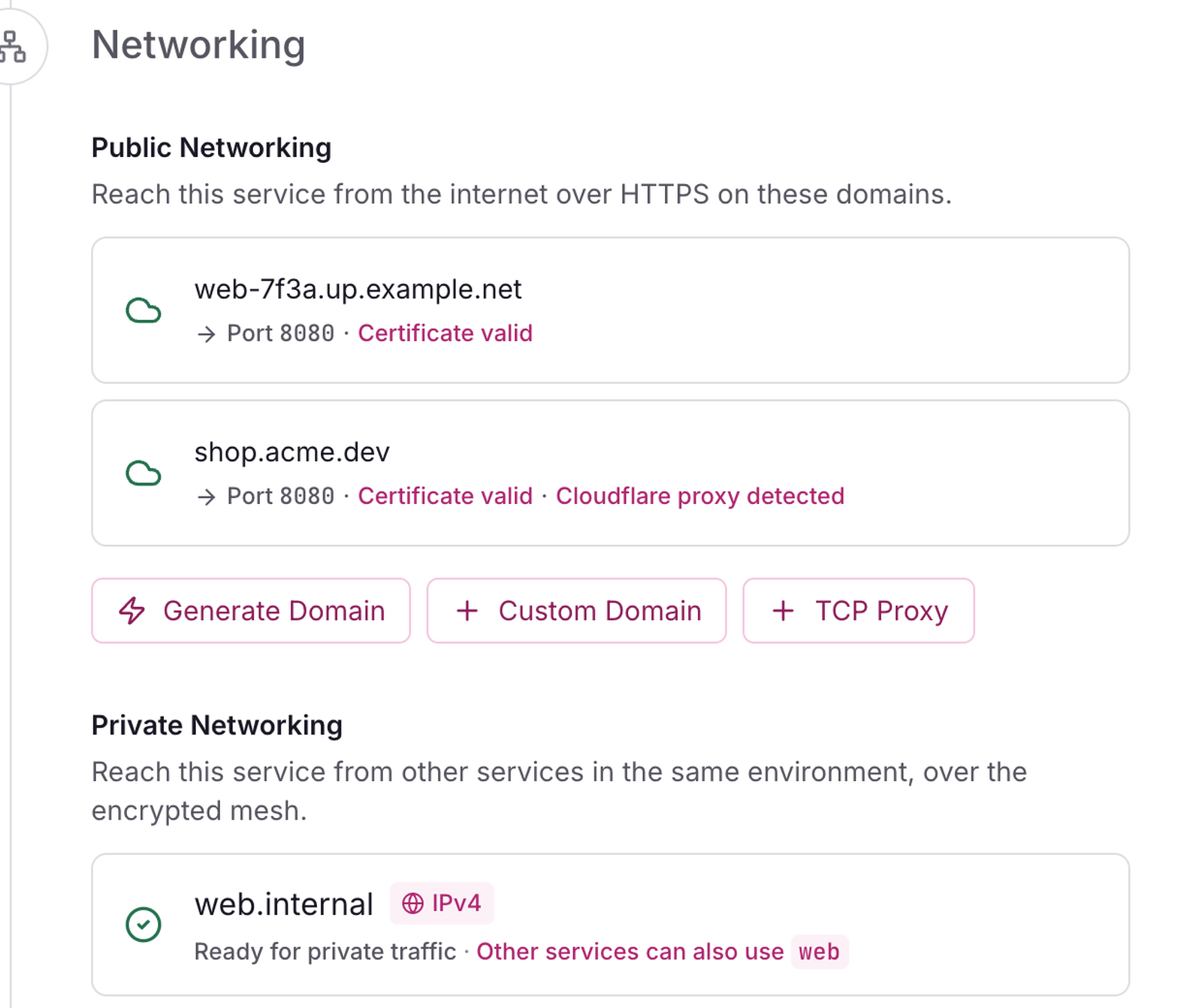
- Open the service, go to Settings, Networking and select Generate Domain. Open the address.
Add Postgres
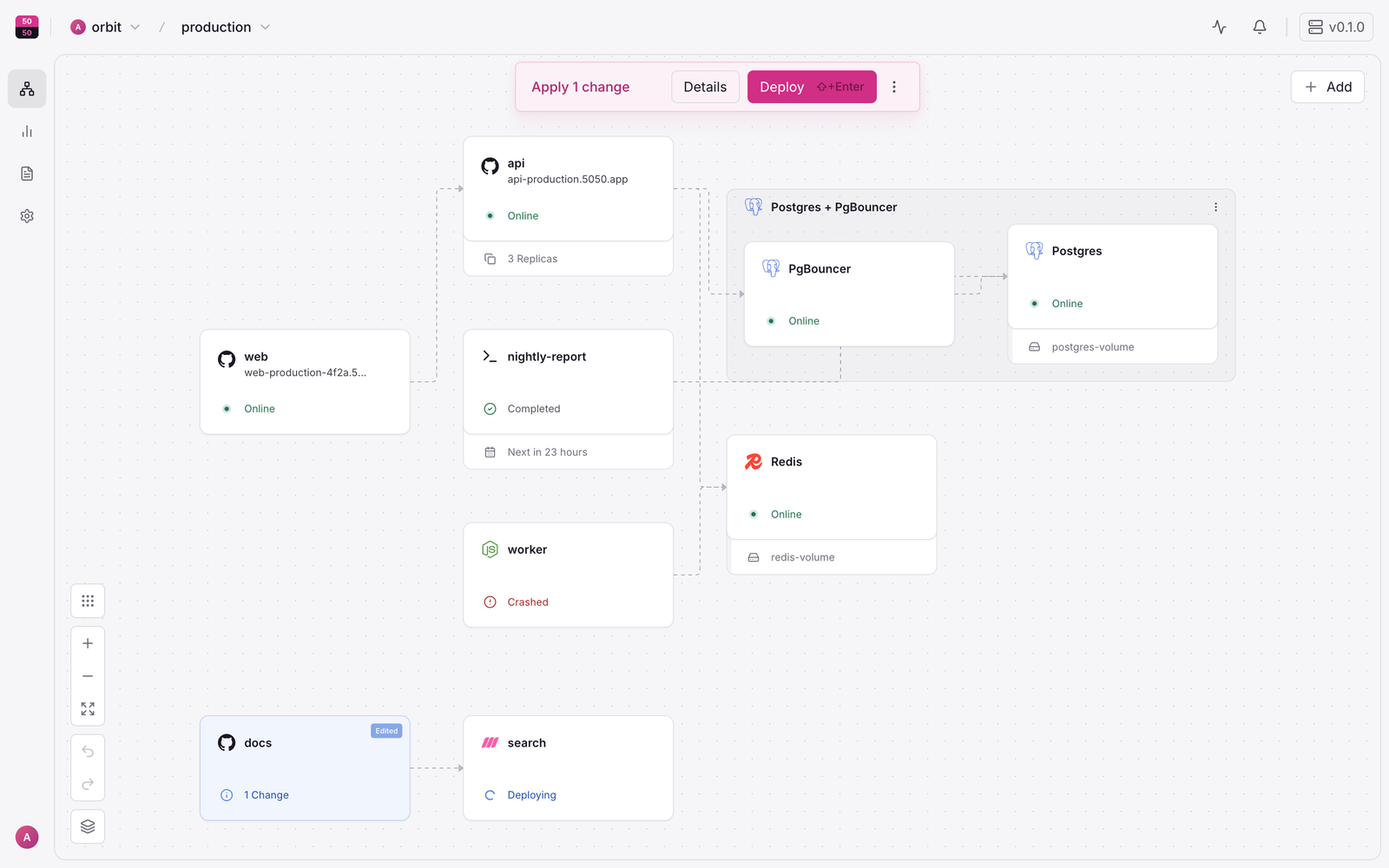
- On the canvas, select + Add, then Database, then Postgres.
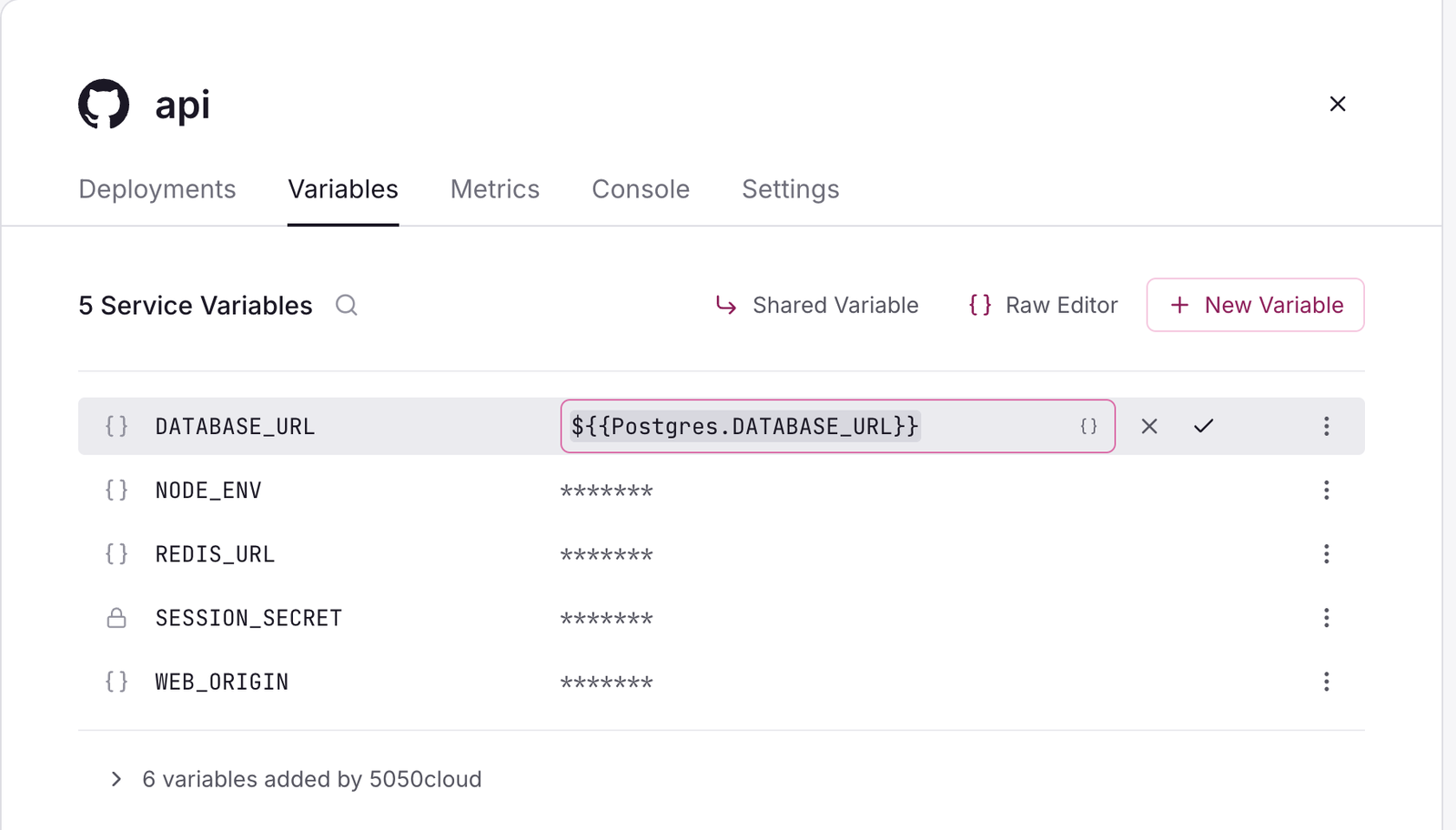
- Open your app service, go to Variables and add
DATABASE_URLwith the value${{Postgres.DATABASE_URL}}. - Select Deploy in the banner at the top of the canvas to apply the staged change.
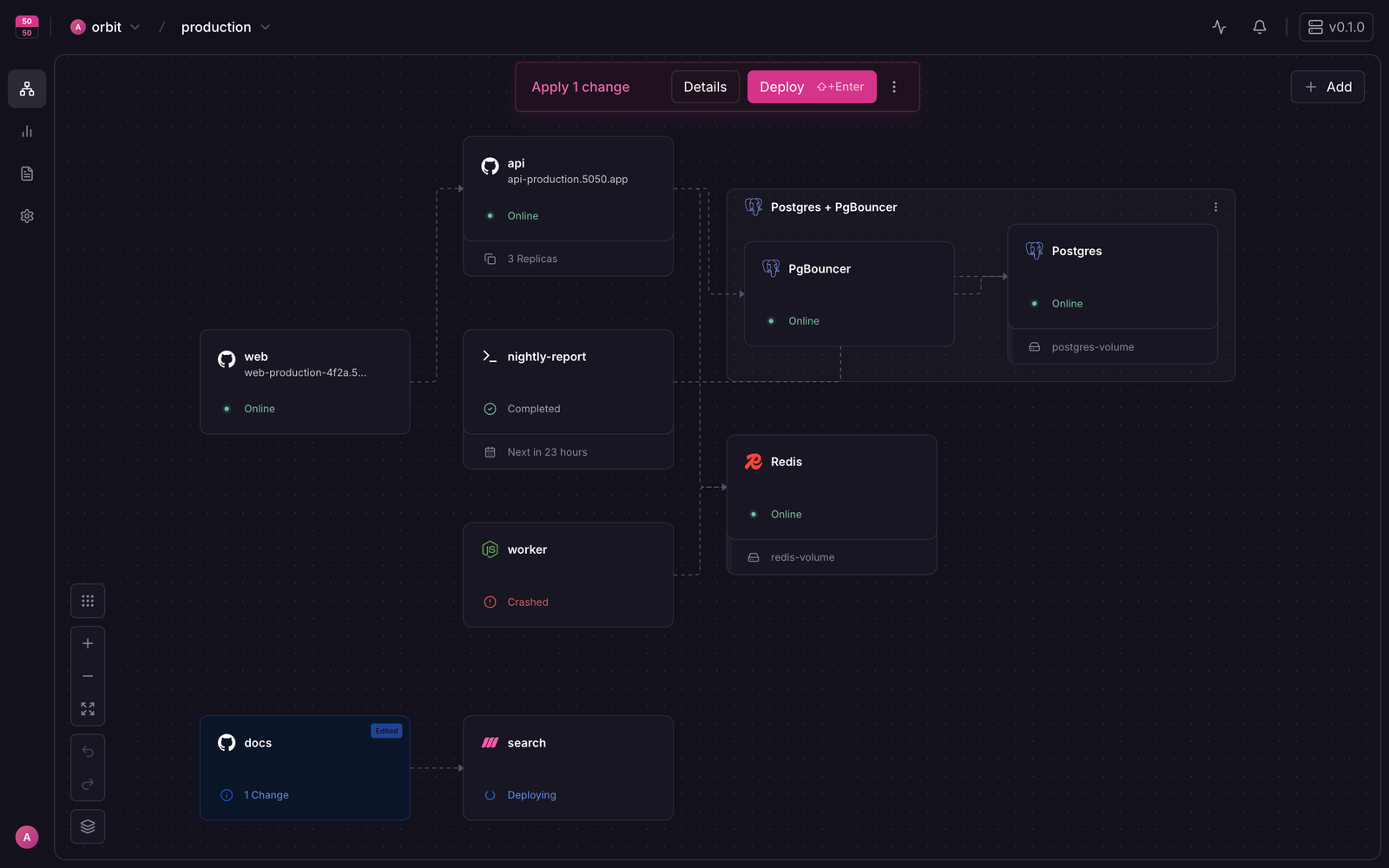
The canvas now draws a line from your app to Postgres, the dashed lines below.
What success looks like
- The generated address opens your app over HTTPS with no certificate warning.
- The app's Variables tab shows
DATABASE_URLresolved to the Postgres service.
Next steps
- Your domains and Custom domains and HTTPS.
- Backups bucket: turn on database backups.
- Set up the CLI:
openrail upfrom your laptop. - Production checklist.